
Approval Hub Setup
Overview
The Approval Hub allows account administrators to review files that PC Matic has blocked and approve or deny requests submitted by users.
When a user attempts to run a blocked file, they can submit a request for an administrator to review. The request appears in the account's Approval Hub, where an administrator can review the file details and decide whether to allow it.
Important: Approving a file creates an allow policy based on the options selected by the administrator. Review the file and approval scope carefully before approving a request.
Opening the Approval Hub
1. Sign in to the PC Matic account portal.
2. Select Approval Hub from the left-hand menu.
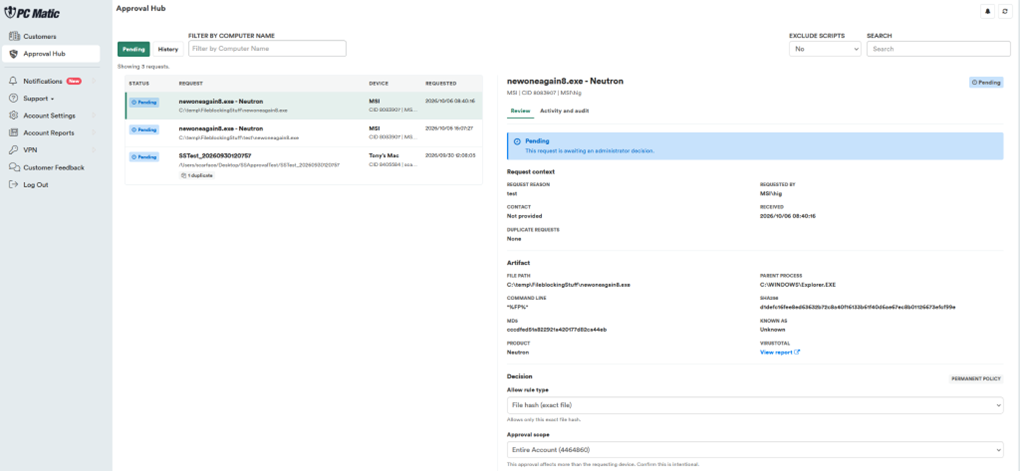
3. The Pending tab displays requests that are waiting for an administrator's decision.
The Pending list shows information such as:
· Status – The current status of the request.
· Request – The blocked file and its associated product or application.
· Device – The computer where the file was blocked.
· Requested – The date and time the request was submitted.
You can also use the Filter by Computer Name field to find requests from a specific computer.
Reviewing a Request
Select a request from the Pending list to view its details. The review page contains information about the request, the blocked file, and the approval options.
Request Context
This section provides information about the request, including:
· Request Reason – Why the user submitted the request.
· Requested By – The user or account that submitted the request.
· Contact – Contact information provided with the request, if available.
· Received – When PC Matic received the request.
· Duplicate Requests – Indicates whether the same request has already been submitted.
If duplicate requests are present, review them before making a decision to avoid creating unnecessary approval policies.
Reviewing the Blocked File
The Artifact section provides additional information about the blocked file:
· File Path – The location of the blocked file.
· Parent Process – The process that attempted to launch the file.
· Command Line – The command used to execute the file, if available.
· SHA256 – The unique SHA-256 hash of the file.
· MD5 – The MD5 hash of the file.
· Product – The product associated with the file, when identified.
· Known As – A known name for the file, when available.
· VirusTotal – A link to view additional information about the file in VirusTotal.
Administrators should review this information before approving a request.
Request Review and Approval Options
Choosing an Approval
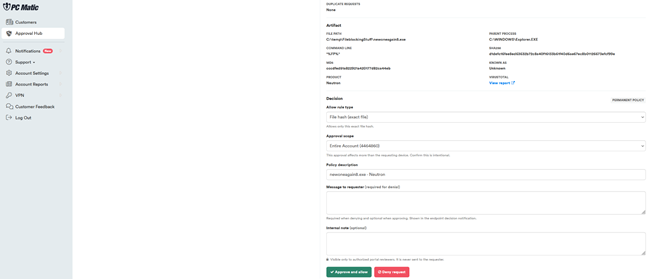
The Decision section determines how the file will be allowed.
Allow Rule Type
Select the rule type that should be used to allow the file.
File hash (exact file) – Allows only the specific file matching the identified file hash.
Other rule types may be available depending on the request and account configuration.
Tip: When possible, use the most specific rule that meets the user's needs. A hash-based rule is more restrictive than a rule that could allow multiple files.
Approval Scope
The Approval Scope determines which devices can use the approved file.
Entire Account – The approval can apply beyond the computer that originally submitted the request.
Important: Because the approval scope can affect multiple computers, confirm that the selected scope is appropriate before approving the request.
Policy Description
The Policy Description identifies the approval policy. Use a descriptive name that makes the policy easy to identify later.
Example: newoneagain8.exe - Neutron
Message to Requester
The Message to requester field allows the administrator to send a message back to the user.
· Required when denying a request.
· Optional when approving a request.
· Shown in the endpoint decision notification.
Example denial message:
We were unable to approve this file because it could not be verified as safe. Please contact your administrator if you believe this was blocked in error.
Internal Note
The Internal note field can be used to record information for other authorized portal reviewers.
· Visible only to authorized portal reviewers.
· Not sent to the requesting user.
Approving a Request
1. Review the Artifact information.
2. Select the appropriate Allow Rule Type.
3. Select the appropriate Approval Scope.
4. Enter or confirm the Policy Description.
5. Optionally enter a Message to requester.
6. Add an Internal note if needed.
7. Review the approval settings one more time.
8. Select Approve and allow.
The request will be processed and the selected allow policy will be applied
Denying a Request
1. Review the request and file information.
2. Enter an explanation in Message to requester.
3. Optionally add an Internal note.
4. Select Deny request.
A message to the requester is required when denying a request.
Pending and History
Pending
Displays requests that are still waiting for an administrator decision.
History
Displays previously processed requests so administrators can review past approval and denial decisions.
Searching and Filtering Requests
Filter by Computer Name
Enter a computer name to display requests associated with a specific device.
Search
Use the Search field to locate requests using available request information.
Exclude Scripts
The Exclude Scripts option can be used to filter script-related requests from the list.
Recommended Approval Practices
Before approving a blocked file, administrators should:
· Verify that the user actually needs the file.
· Review the file path and parent process.
· Review the SHA-256 and other available file information.
· Check the VirusTotal report when appropriate.
· Confirm that the file comes from a trusted source.
· Use the most restrictive Allow Rule Type that meets the user's needs.
· Carefully review the Approval Scope.
· Avoid selecting Entire Account unless the file should be trusted across the account.
Example
If a user needs a specific application installer that PC Matic has blocked, an administrator may choose a File hash (exact file) rule. This limits the approval to that specific file rather than broadly allowing other files associated with the application.
Quick Reference
| Option | Purpose |
| Pending | Requests waiting for administrator review |
| History | Previously processed requests |
| Filter by Computer Name | Find requests from a specific computer |
| Exclude Scripts | Filter script-related requests |
| File Path | Location of the blocked file |
| Parent Process | Process that attempted to launch the file |
| SHA256 / MD5 | File identification hashes |
| VirusTotal | Additional file reputation information |
| Allow Rule Type | Determines how the file will be allowed |
| Approval Scope | Determines which devices the approval applies to |
| Policy Description | Name/description for the resulting policy |
| Message to Requester | Message shown to the user |
| Internal Note | Notes visible only to authorized reviewers |
| Approve and allow | Approves the request |
| Deny request | Rejects the request |